


How to Choose Speech Recognition Software: 2026 Buyer’s Checklist
Speech recognition software and dictation software have moved from “nice to have” to everyday productivity tools. In 2026, most buyers aren’t deciding whether speech to text works — they’re deciding which deployment model fits their workflow, privacy needs, and budget on Windows.
If you want system-wide dictation across Windows applications (Word, Outlook, browsers, legal tools, CRM/EMR text fields, and desktop apps), you need more than a browser microphone button. For most Windows users who want fast setup, low friction, and strong value, Speech Recognition Cloud is often the most practical choice.
This guide is Windows-first by design. (A Mac-focused guide weighs different trade-offs.)
Quick Comparison Table (Windows-Focused)
| Platform | How it runs | System-wide | Offline | Accessibility | Cost | Best for |
|---|---|---|---|---|---|---|
| Speech Recognition Cloud | Installed Windows app; cloud processing; types at the cursor | ✅ | ❌ | ♿ Moderate | Free / $ | Fast, practical dictation in almost any Windows app with minimal training |
| Windows Voice Typing (Win+H) | Built into Windows; cloud-powered voice typing | ✅ | ❌ | ♿ Basic | Free | Occasional, lightweight dictation with zero setup |
| Dragon Professional 16 | Installed desktop software; local processing | ✅ | ✅ | ♿ Advanced | $$$$ | Accessibility-heavy users, offline requirements, macro/command environments |
| Dragon Professional Anywhere | Installed client; cloud-based Dragon engine | ✅ | ❌ | ♿ Advanced | $$$ | Enterprise cloud dictation with central management needs |
| Dragon Medical One | Installed client; cloud-based medical dictation | ✅ | ❌ | ♿ Advanced (medical) | $$$$$ | Clinical documentation and medical-specialized environments |
| Otter.ai | Web + apps; meeting recording & transcription | ❌ | ❌ | — | Free / $$ | Meetings, transcripts, summaries (not cursor-based dictation) |
Who This Guide Is For
- Students writing assignments faster than typing
- Business professionals drafting emails, reports, and updates
- Lawyers producing structured documentation and correspondence
- Government users entering text into Windows systems and forms
- Medical professionals doing general documentation (a medical deep-dive belongs in a separate guide)
- Accessibility users who need reliable speech recognition and sometimes full computer control

The Main Categories of Speech Recognition Software
Most buying mistakes happen when someone compares tools from different categories as if they do the same job. The biggest divider is whether the product can do system-wide dictation (type at the cursor across Windows apps), or whether it’s limited to one browser page, one mobile keyboard, or a recording workflow.
Quick definition: “System-wide” dictation means the tool can insert text at your cursor in most Windows applications (email, documents, forms, and line-of-business apps). “App-limited” dictation means it only works inside a specific app (like Google Docs in a browser) or on a phone keyboard.
1) Installed desktop dictation (local processing)
This is classic desktop dictation: the engine runs on your Windows PC and can keep working even when the internet isn’t reliable. The main example here is Dragon Professional 16.
- Best for: offline requirements, deep customization, accessibility-grade command control
- Trade-off: more setup and a more “command-driven” workflow
2) Installed Windows app with cloud processing (system-wide)
This category is the most common source of confusion, so here’s the plain-English version:
- You install a desktop application on Windows.
- That app captures microphone audio and sends it for cloud speech recognition.
- The recognized text is returned and inserted at the cursor in whichever app you’re using.
This model can feel “system-wide” because it works across applications, even though the speech recognition is cloud-based. It’s often chosen because it’s quick to deploy, updates frequently, and doesn’t require as much command memorization as traditional dictation.
- Examples: Speech Recognition Cloud, Dragon Professional Anywhere, Dragon Medical One
- Best for: everyday Windows productivity dictation with low setup friction
- Trade-off: usually requires an internet connection for live dictation
3) Browser-based dictation (app-limited)
Browser dictation (for example, Google Docs Voice Typing) is typically limited to a supported browser and a specific web app. It can work well if your entire workflow stays inside that environment.
- Best for: students writing directly in Google Docs
- Limitation: generally not designed for dictation into Windows desktop apps, proprietary legal software, or many line-of-business systems
4) Mobile keyboard dictation (mobile-first)
Mobile keyboard dictation (for example, Gboard Voice Typing) is great for quick messages and notes on a phone. It’s not the same as Windows dictation software because it doesn’t provide system-wide cursor dictation across your PC applications.
- Best for: SMS, mobile email, quick notes
- Limitation: not a Windows productivity dictation solution
5) Recording + transcription platforms (record-first)
Transcription platforms (for example, Otter.ai) focus on recording meetings and generating transcripts and summaries. This is useful for teams and collaboration — but it’s a different job than dictation software.
- Best for: meeting capture, transcripts, summaries
- Limitation: not designed for live, cursor-based dictation while you work inside Windows apps
Quick Overview of Major Platforms (Neutral, Factual)
This section describes what each platform is designed to do. It does not rank them yet.
Speech Recognition Cloud
Speech Recognition Cloud is a Windows dictation tool that installs locally and uses cloud speech recognition to insert text at the cursor across applications. It emphasizes low-friction dictation, automatic punctuation, optional AI tools, and broad language support (marketed as 57+ languages), with a free usage tier.
Dragon Professional 16
Dragon Professional 16 is installed Windows dictation software known for deep customization, vocabulary tools, and accessibility-grade command control (including macros and hands-free workflows). It’s often used when offline/local processing is required.
Dragon Professional Anywhere
Dragon Professional Anywhere is Dragon’s cloud-based dictation offering for managed deployments. It uses a client plus cloud recognition and is commonly evaluated when centralized administration and enterprise rollout control are important.
Dragon Medical One
Dragon Medical One is a cloud-based medical dictation solution designed for clinical documentation workflows, including medical vocabulary specialization and healthcare-oriented deployment models.
Windows Voice Typing (Win+H)
Windows includes built-in voice typing that can insert text where you can type. It’s convenient for occasional dictation with zero purchase, but it’s not typically positioned as a full workflow dictation platform with advanced productivity features.
Google Docs Voice Typing and Gboard Voice Typing
Google Docs Voice Typing is browser-based and app-limited to documents in supported browsers. Gboard Voice Typing is mobile-first, designed for typing on phones rather than dictating across Windows desktop applications.
Otter.ai
Otter.ai is primarily a recording and transcription platform (meetings, transcripts, summaries, and collaboration). It is not typically used as a cursor-based dictation engine for drafting content directly into Windows applications.

Buyer’s Evaluation Checklist
Before choosing speech recognition software or dictation software, evaluate your real workflow. The right tool depends less on marketing and more on where you type, how often you dictate, and whether you need system-wide Windows control.
Practical rule: choose the tool that meets your requirements with the least friction to adopt and maintain.
1) Accessibility & Computer Control
If you need more than dictation — such as hands-free navigation, mouse control, macro scripting, or deep command environments — Dragon Professional 16 is the strongest fit in this guide.
- Voice-driven Windows navigation and control
- Macro creation and command workflows
- Support for users who rely on accessibility speech recognition
If your main need is fast text entry (not running your PC entirely by voice), a dictation-first tool like Speech Recognition Cloud is often simpler for day-to-day work.
2) Dictation Speed & Latency
“Fast” is the whole experience: how quickly you can start dictating, correct text, and keep going without breaking concentration. Cloud-processed dictation may return text after a phrase for context (rather than word-by-word streaming), while local engines can feel consistent offline. Your microphone quality and internet stability often influence perceived latency as much as the software.
3) Accuracy Drivers (What Actually Improves Results)
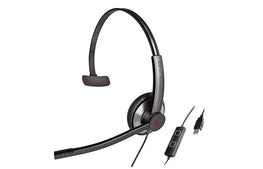
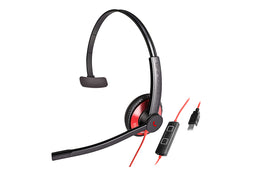
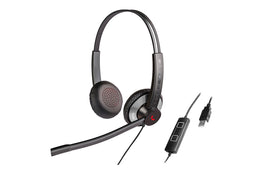
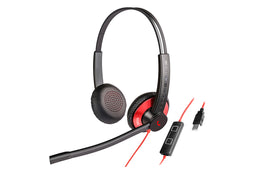
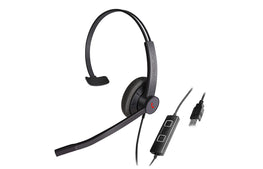
- Microphone quality: a dedicated headset or USB mic can improve accuracy and reduce fatigue.
- Environment: background noise and room echo matter for any speech-to-text engine.
- Consistency: clear pacing and a repeatable workflow generally beat “talking faster.”
- Vocabulary fit: names, acronyms, legal terms, and medical terminology need support.
4) Vocabulary Specialisation
If your work includes specialized terminology, assess how each platform handles vocabulary.
- Dragon Professional 16: strong tools for building and managing custom vocabulary.
- Dragon Medical One: clinical vocabulary specialization designed for healthcare documentation.
- Speech Recognition Cloud: can support customization, but typically with a lighter-weight approach than traditional “train/build” systems.
5) Formatting & Automation
Formatting is where the “feel” of dictation software becomes obvious.
- Command-driven formatting: saying “comma,” “full stop,” “new line,” and using structured commands.
- Automatic punctuation: speaking more naturally while the tool inserts punctuation and structure.
Many users prefer automatic punctuation because it reduces cognitive load and makes drafting feel more like normal speech. Dragon Professional 16 remains excellent for users who want precise, command-based control and macro automation.
6) Cross-Application Compatibility
Key question: Can it dictate into every Windows application I use?
If you dictate into line-of-business systems, desktop legal tools, government applications, or varied text fields, browser-only dictation can be limiting. System-wide dictation tools are designed for this reality.
7) Privacy & Security Posture
Keep this practical and verifiable:
- If local/offline processing is required, start with Dragon Professional 16.
- If cloud processing is acceptable, confirm privacy controls and how retention is handled for your plan.
- For policy-sensitive environments, request written confirmation of relevant data-handling terms.
8) Deployment Complexity
- Windows Voice Typing: built-in and immediate.
- Speech Recognition Cloud: typically quick install and minimal training burden.
- Dragon Professional 16: more setup, especially for command-heavy workflows.
- Dragon Professional Anywhere / Dragon Medical One: usually evaluated in managed deployment contexts.
9) Support & Training
Plan for onboarding if you expect to use macros, templates, and deep command workflows (common with Dragon Professional 16). Dictation-first tools can reduce training time by relying more on automatic punctuation and simpler interaction patterns.
10) Total Cost of Ownership & Value
Value isn’t only the sticker price. Consider:
- Time to proficiency and training overhead
- IT or admin overhead (especially at team scale)
- Editing time saved through formatting and automation
- Whether you’re paying for capabilities you won’t use
For many Windows users, Speech Recognition Cloud offers a strong value-to-effort ratio: system-wide dictation, fast onboarding, and a free tier to reduce adoption risk. Dragon Professional 16 justifies higher investment when offline processing or accessibility-grade control is essential.
Matching Platforms to User Types
Accessibility & full Windows control (hands-free navigation, macros)
→ Dragon Professional 16
High-volume dictation across many Windows apps (fast + easy)
→ Speech Recognition Cloud
Enterprise-managed cloud dictation
→ Dragon Professional Anywhere
Clinical documentation in a healthcare setting
→ Dragon Medical One
Occasional, lightweight dictation only
→ Windows Voice Typing or Speech Recognition Cloud free tier
If you're primarily evaluating no-cost options, see our breakdown of Best Free Speech Recognition for Windows .
Meeting transcripts and summaries
→ Otter.ai

Deployment, Pricing & Support Considerations
When evaluating speech recognition software, focus on the deployment model and the ongoing workflow cost. The “best” option is the one that fits your daily Windows usage with the least friction.
- Dragon Professional 16 : installed Windows software with local processing; best when offline capability and advanced control justify the higher investment.
- Dragon Professional Anywhere: cloud-based Dragon deployment model; commonly used for enterprise-managed rollouts.
- Dragon Medical One: cloud-based medical dictation platform for structured clinical environments.
- Speech Recognition Cloud: installed Windows app with cloud speech processing; free tier available with a low barrier to entry.
- Windows Voice Typing: built-in and free; best for light usage.
Community Sentiment & Practitioner Themes
Public discussions tend to focus on practical outcomes: ease of setup, formatting friction, reliability in real apps, and whether the tool feels worth it over time.
- Automatic punctuation is often valued by users who don’t want to speak formatting commands.
- Dragon’s command depth is valued by accessibility users and macro-heavy workflows.
- Free tiers lower adoption risk for students and small teams.
- Workflow fit matters more than feature lists.
Overall Evaluation: Which Solution Suits Most Users?
For most Windows professionals who want system-wide dictation without heavy configuration, Speech Recognition Cloud offers a highly practical balance of cost, ease of use, deployment simplicity, and everyday productivity.
Its automatic punctuation and AI-assisted formatting reduce the need to speak traditional command phrases such as “full stop” or “comma,” which can streamline drafting for many users. For people focused on writing (not building macros), this often feels faster and more natural.
Dragon Professional 16 remains the preferred solution when:
- Offline/local processing is required
- Accessibility-grade computer control is essential
- Macro scripting and advanced command environments are part of the workflow
In medical environments, Dragon Medical One is often selected for clinical specialization and structured deployment models. Browser-based tools and transcription platforms have their place, but they’re not direct replacements for system-wide Windows dictation.
Key Takeaways
- System-wide Windows compatibility is the biggest divider for professional dictation workflows.
- Offline processing requirements point to Dragon Professional 16.
- Installed apps with cloud processing can offer quick setup and strong everyday performance.
- Automatic punctuation can reduce cognitive load compared to command-driven formatting.
- Medical environments often require specialized solutions such as Dragon Medical One.
- Microphone quality meaningfully affects accuracy across platforms.